Hi @fshero, I like your script so much that I start preparing my own variant. Is there some way I can share my updates with you or you would prefer to kind of create fork of yours ? I'm fine with any of the option, credits goes for sure to you ;-) But I also understand the hurdle of someone else playing with other's code...
ScriptAWTRIX NG
Solar App
On an AWTRIX display
On your display
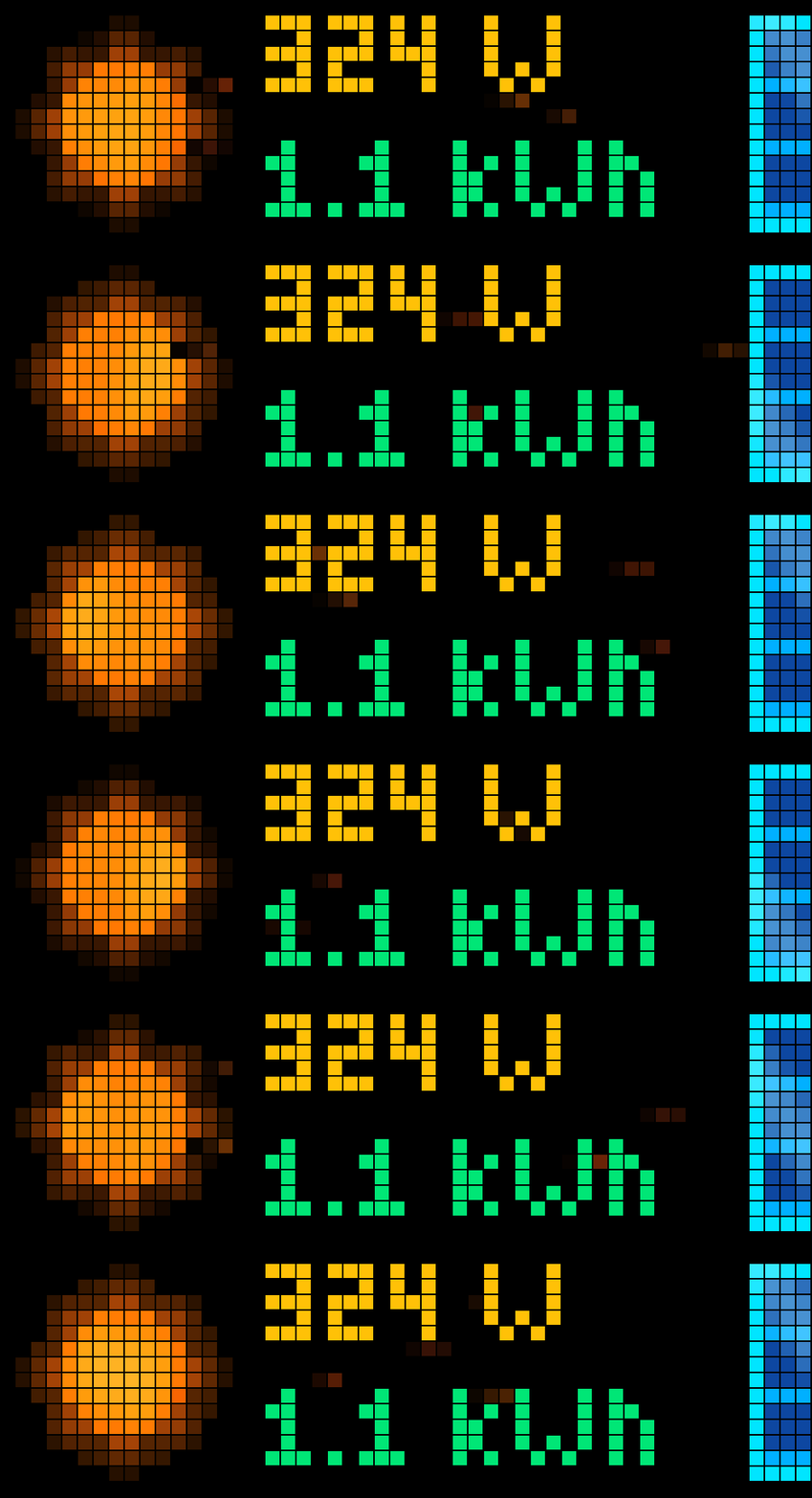
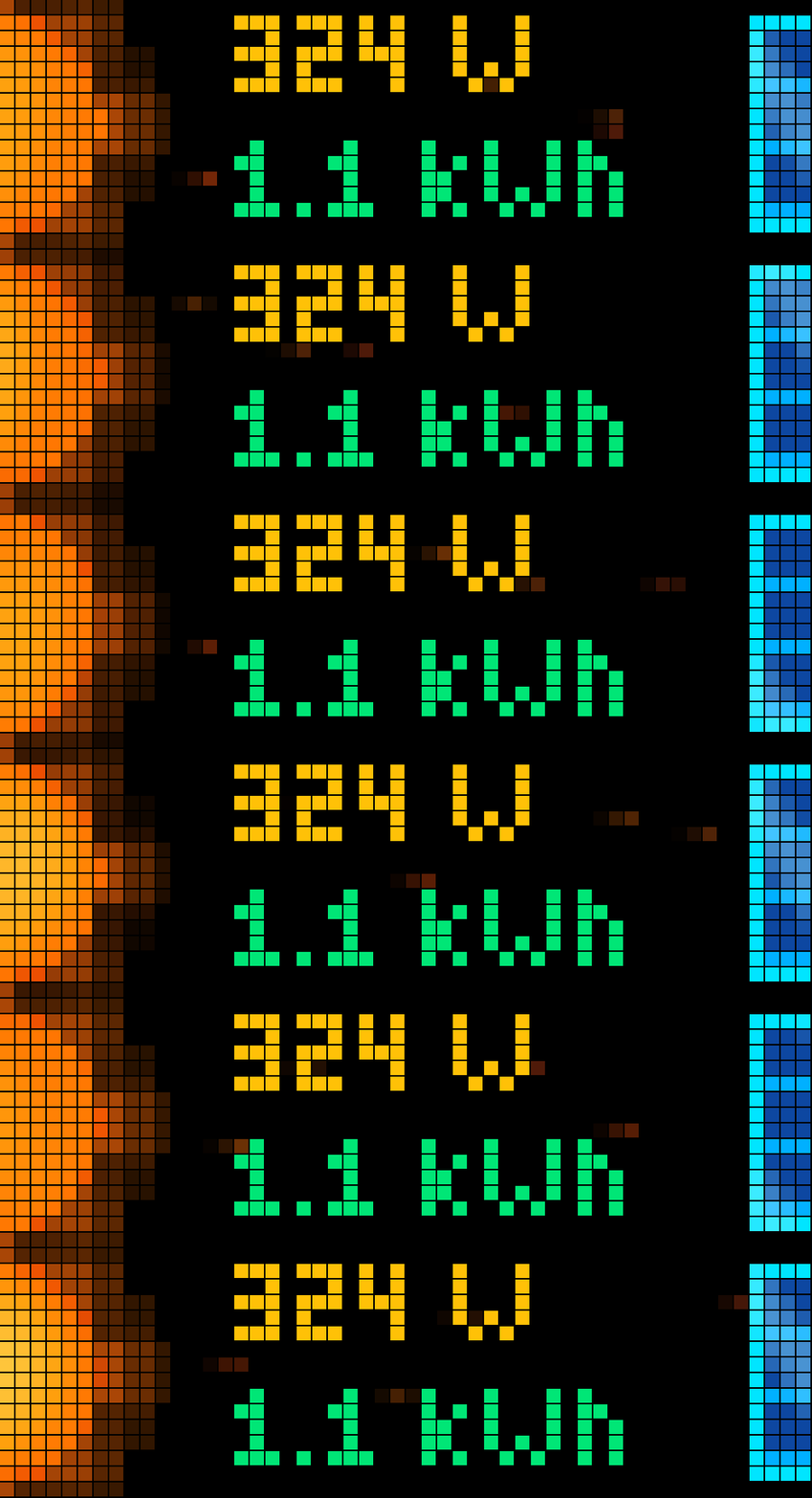
A sleek, animated solar and household energy monitor for AWTRIX displays featuring a rotating 3D sun, flowing photon streams, real-time power metrics, and an interactive house consumption view.
Which AWTRIX do you have?
See below where it runs, or choose your device.
- Topic
- Smarthome
- Includes
- Script
Runs on
- Does not run on 32×8 (TC001 & DIY) Made for 52×16 (TC002).
- Runs on 52×16 (TC002)
- Does not run on 32×8 with AWTRIX 3 (TC001 & DIY) Made for AWTRIX NG.
Choose your display in the next step.
Script description
SolarApp transforms your AWTRIX display into an elegant, living energy monitor for your balcony solar setup or rooftop photovoltaic system.
Instead of showing static numbers, SolarApp brings your solar generation to life: the glowing pixel-art sun rotates dynamically in 3D and spins faster as your panels produce more power. Subtle ember-colored photon trails glide smoothly across your screen toward a gently shimmering solar panel, visualizing the continuous flow of clean energy.
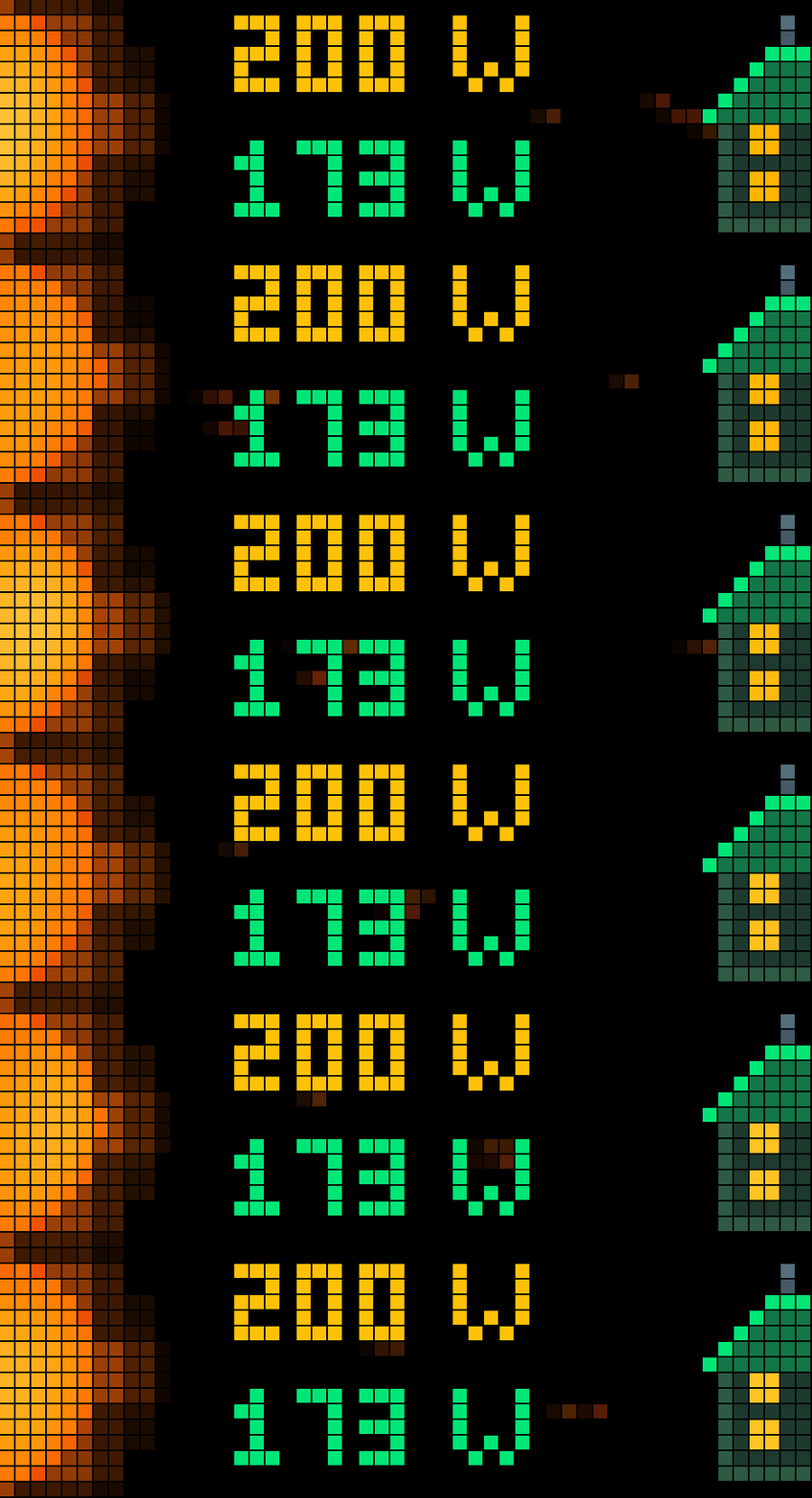
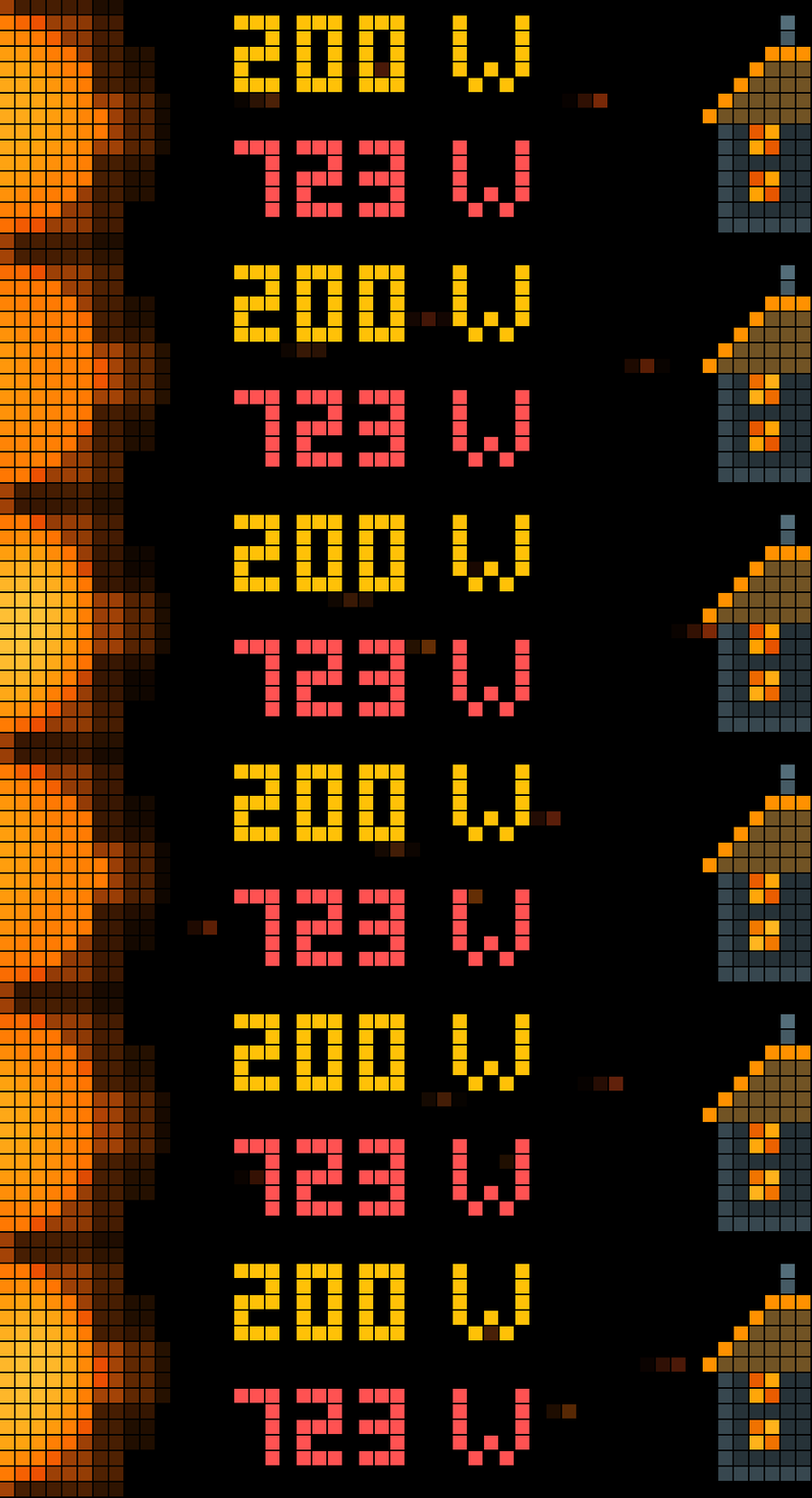
With a simple press of the Select button on your clock, you can toggle between your daily energy yield and your live household power consumption. When switching to consumption mode, the right side transforms into a detailed pixel-art house: incoming solar energy is absorbed directly through the roof with glowing window flashes, while grid import and nighttime demand are reflected by warm-glowing, flickering windows and a warm terracotta roof.
Features and Visual Highlights
-
Dynamic 3D Sun Animation:
- Pixel-art sun with an 8-lobe pulsating corona and smooth warm-color gradients.
- Spherical 3D rotation that visibly accelerates with higher watt output.
- Automatic sleeping night glow when no power is being generated.
-
Flowing Photon Trails:
- Muted, ember-colored energy streaks flow gently across the display.
- Stream speed scales dynamically based on your current generation.
- In consumption mode, photons naturally curve and get absorbed directly into the house.
-
Interactive Dual-Mode (Yield vs. Consumption):
- Hardware Button Toggle: Press the upper middle action button (
Select) on your clock at any time to seamlessly toggle between the Daily Yield view and the House Consumption view. - Persistent State: Your chosen view is saved in flash memory and persists across app rotations and device reboots.
- Hardware Button Toggle: Press the upper middle action button (
-
Dynamic Pixel-Art House (Consumption Mode):
- Solar Surplus (
Production >= Consumption): The roof illuminates in eco-friendly green (#00E676), and windows flash in bright gold whenever incoming solar photons strike the house. - Grid Import (
Consumption > Production): The roof turns into a warm amber/terracotta tone (#FF9100), the readout switches to vivid coral-red (#FF5252), and the windows feature a cozy, organic hearth/filament flicker in deep copper and gold tones (#E65100-#FFD54F).
- Solar Surplus (
-
Shimmering Solar Panel (Yield Mode):
- Clean pixel-art solar module at the right edge with a deep-blue silicon texture and cyan aluminum frame.
- Calm, meditative shimmer effect that breathes softly while producing power.
-
Clear, Color-Coded Readouts:
- Line 1 (Live Solar Production): Watt value and
Wunit displayed permanently in warm golden yellow. - Line 2 (Daily Yield): Energy produced today shown in eco-friendly green (
kWh/Wh). - Line 2 (House Consumption): Live household demand shown in green (full solar coverage) or coral-red (grid import).
- Line 1 (Live Solar Production): Watt value and
-
2 Visual Layouts (
visual_style):sun_large(Default): Full 16x16 animated 3D sun on the left, horizontal photon corridor across the center, and solar panel or house on the right.sun_half: An oversized XXL half-sun rising along the left border with wide photon flow and right-side graphics.
MQTT Configuration and Message Format
SolarApp subscribes to up to three configurable MQTT topics: live solar generation (Line 1), daily energy yield (Line 2 / Yield View), and live household consumption (Line 2 / Consumption View).
1. Supported Message Formats
The app automatically parses both raw numeric values and JSON objects using ultra-fast, memory-efficient native regex extraction.
Format A: Plain Numbers / Raw Strings
You can publish numeric values directly as plain text or numbers.
- Example for Power Topic:
450 or 450.5 - Example for Yield Topic:
2450 (in Watt-hours) - Example for Consumption Topic:
380 or 380.0
Format B: JSON Payloads
If your inverter, smart meter, or Home Assistant publishes JSON objects, SolarApp extracts the relevant numeric value automatically.
-
Example JSON for Power:
{"production": 650}
or
{"power": 650.5, "voltage": 230.1}
or
{"P_AC": 650} -
Example JSON for Daily Yield:
{"YieldDay": 3200}
or
{"daily_production": 3200} -
Example JSON for Consumption:
{"consumption": 420}
or
{"power": 420, "grid_power": 120}
or
{"apower": 420.2}
2. Supported JSON Keys
SolarApp automatically inspects incoming JSON payloads for the following keys (case-sensitive as listed):
-
Power Topic (Solar Watts):
production, Production, P_AC, p_ac, power, Power, solar_power, solar_production, P_PV, val, value, p, P -
Daily Yield Topic (Watt-hours or kWh):
YieldDay, yield, Yield, production, Production, daily_production, today_production, energy_today, yield_day, energy, Energy, val, value, y, E_Day -
Consumption Topic (Household Demand in Watts):
consumption, Consumption, power, Power, house_power, grid_power, load, Load, P_Load, p_load, total_power, act_power, apower, val, value, p, P
3. Expected Units and Handling
- Current Solar Power:
Expected in Watts (W). Negative values (standby or nighttime) are automatically clamped to 0 W. - Daily Yield:
Expected in Watt-hours (Wh). With the default setting yield_unit = auto, values under 1000 Wh are displayed as Wh (e.g. 650 Wh), and values of 1000 Wh or higher are automatically formatted into decimal kWh (e.g. 3400 Wh is displayed as 3.4 kWh). You can also force kWh or Wh in the settings. - Household Consumption:
Expected in Watts (W). Negative values are automatically clamped to 0 W.
4. Common Setup Examples
- OpenDTU / AhoyDTU (Hoymiles Inverters):
- Power Topic: solar/ac/power or inverter/total/P_AC
- Yield Topic: solar/ac/yieldday or inverter/total/YieldDay
- Shelly (e.g. Shelly Plus 1PM, Pro 3EM, Shelly EM):
- Inverter Solar Power: shellyplus1pm-.../status/switch:0 (extracts "power")
- Smart Meter / House Consumption: shellypro3em-.../status/em:0 (extracts "total_power" or "power")
- Tasmota / Poweropti / IR Lesekopf (SML Smart Meter):
- Consumption Topic: tele/tasmota_meter/SENSOR (extracts "power")
- Home Assistant:
- Publish sensor states directly via MQTT actions with either raw numbers or JSON state objects.
App Settings
Customize SolarApp directly within the AWTRIX Web UI under the Apps tab (click the gear icon next to SolarApp):
| Setting | Options / Default | Description |
|---|---|---|
| Visual Style | sun_large, sun_half(Default: sun_large) |
Choose between the classic 16x16 3D sun or the XXL rising half-sun on the left edge. |
| Power MQTT Topic | Default: inverter/total/P_AC |
MQTT topic for live solar power generation in Watts. Accepts plain numbers or JSON payloads. |
| Daily Yield MQTT Topic | Default: inverter/total/YieldDay |
MQTT topic for today's solar energy yield in Wh. Accepts plain numbers or JSON payloads. |
| Consumption MQTT Topic | Default: house/total/power |
MQTT topic for live household energy demand in Watts. Accepts plain numbers or JSON payloads. |
| Default Bottom View | yield, consumption(Default: yield) |
Select which secondary metric is shown by default (overridden live via the hardware button). |
| Max Power (W) | Default: 800 |
Your system's peak wattage (e.g. 600 W, 800 W, 1500 W) to calibrate rotation and photon speeds. |
| Animation Speed | Default: 4 (1 - 10) |
Base animation pace for sun rotation, photon flow, and shimmering effects. |
| Yield Unit | auto, kWh, Wh(Default: auto) |
Automatically converts to kWh above 1000 Wh, or forces your preferred unit. |
Sign in to view and copy the code of this script.
Community
Discussion 19
Ask a question, suggest a change or share how you use it.
Newest first
I’m really glad you like my script so much! I’m not entirely sure what the best way is to exchange your changes. It would be great to have a "remix" feature here on the platform so you could easily derive one script from another. I’d also be totally fine with you uploading the script yourself here on the platform. It’s not like anyone makes money off this anyway, and it helps the community. It would just be cool if you could mention me in the description. Another alternative that just crossed my mind: I could set up a Git repo, and you could open a pull request / merge request. What do you think?
Hi, not sure because I started kind of rework multiple scripts here and also already publishing them on Github - I mean I have one repo only for all scripts. If you want, you can have a look - https://github.com/shaarkys/AWTRIX-Hub-media - Solar app is visible there. You can try copy paste it or integrate versions and test yourself... a remix, like on 3D prints would be really nice though ;-)
If you put that much effort in your version of the script, publish it. I'm totally okay with that. Maybe we will get a remix feature in the future :)
Btw. I also pushed my stuff to git if somebody is interested :D https://github.com/fshero/awtrix-solar-app
i added a "consumption" view that can show this value as bottom number. You can toggle the view by pressing the middle button. The selected view will be saved and used in the rotation. See the screenshots for some examples.
Have an idea?
Sign in to ask questions and join the conversation.